
Rates
FESTIVAL 2026 · 60-day 8:00 AM IST · Durga 16 Aug · Diwali 9 Sept · Chhath 16 Sept · NYE 1 Nov · live software REDBULL TS ₹1500 NEW TERMINAL TS ₹1700 NEW GADAR TS ₹1300 STAR TS ₹1400 SUPERMAN TS ₹1800 BLACK TURBO TS ₹1900 HITMAN TS ₹1600 PROMAX TS ₹1800 XTREEM TS ₹1600 RANGER TS ₹1700 OCEAN TS ₹999 VPS Demo is Free for Everyone No Registration Required TatkalHub focus: trusted platform, free training, instant installation, quick support, and original products. Anonymous Signal support ke liye Signal download karein. Private chat, service help, and buying guidance available.
FREE GUIDE for GADAR TS Users

GADAR TS
Login Process Guide

This page includes Chrome Weblogin, Edge Weblogin, and App Login ready-to-play videos plus step-by-step text instructions. Daily pre-setup reduces login issues and keeps bookings smooth.
Chrome Guide Edge Guide App Login Guide
GADAR TS Tatkal Software

Quick Setup Shortcuts

Click any of the 3 cards to jump to the exact guide section on this page.

Chrome Weblogin Guide
Video + step-by-step Chrome setup instructions.
Open Chrome Guide
Edge Browser Setup
Video + step-by-step Edge login instructions.
Open Edge Guide
App Login Steps
Video + token process + daily readiness steps.
Open App Login Guide
Before Booking Mandatory Step

🔥 GADAR TS BOOKING INSTRUCTIONS (WEB / WEB3) 🔥

For booking, use WEB Login + WEB3. This process is mandatory once daily.
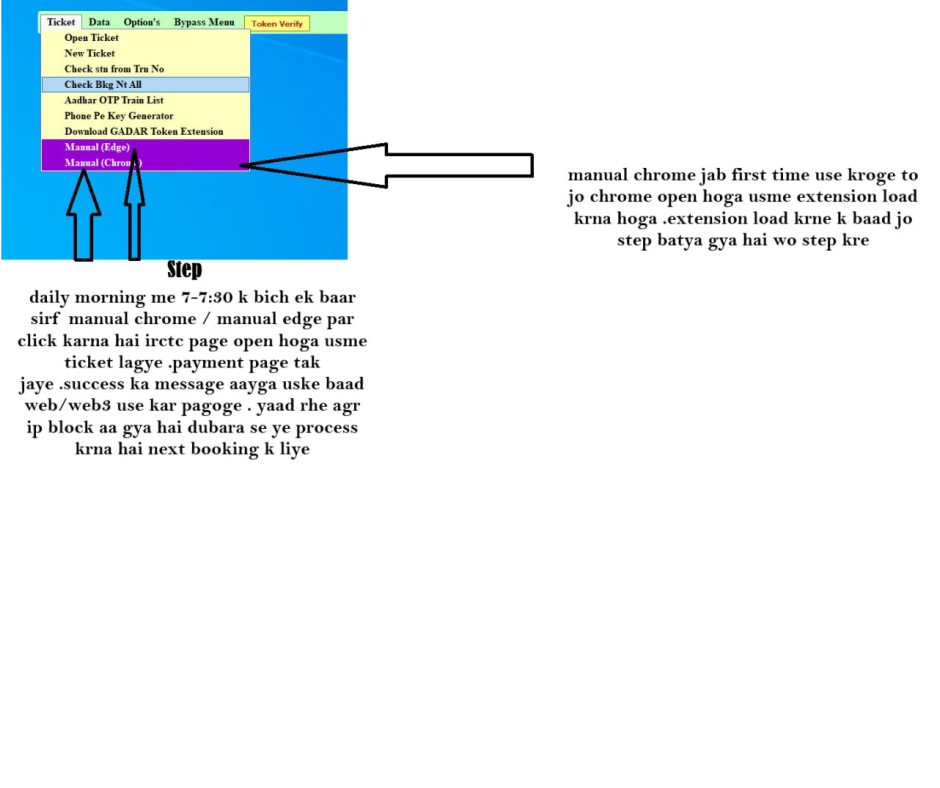
Easy Visual Guide
WEB / WEB3 Mandatory Login
Follow this image and complete the daily setup once.
GADAR TS WEB / WEB3 mandatory login guide
📌 Daily Process (Important)
Once Every Morning
Time: 7:00 AM – 7:30 AM
Completing the mandatory login process in this window improves stability for the next bookings.
🏠 Home Slot Login
Log In to WEB + WEB3
  • Log in to both WEB + WEB3.
  • At a time, 2 pair login is allowed.
  • You can also configure 2 routes.
⚠️ Important Notice
Session restricted?
If IRCTC restricts the session, repeat the daily process before the next booking.
Bonus Tips
Easy Rules to Avoid Login Issues
Before generating tokens
  • Restart your internet connection.
  • Use the device change option in the app.
  • Then start generating tokens.
Daily token strategy
  • Do not use the same ID for tokens every day—rotate IDs.
  • Use separate IDs for opening time (AC and SL).
  • Avoid sending more than 10 tokens from a single ID.
PC / Web stability tips
  • On a problematic system, keep only one app login per PC.
  • Use two web logins on the same PC.
  • After manual web usage, restart the internet on that PC.
  • A normal stable PC setup is best for web usage.
Login timing (jab issue aa raha ho)
General
7:45 – 7:47
AC
9:45
SL
10:45
Following this timing reduces login issues.

GADAR TS Weblogin Setup Step-by-Step

Set up Chrome and Edge once properly, then the daily web-login process stays smooth.

Video Guide (Chrome)
Easy walkthrough for Chrome web-login setup
Video Guide (Edge)
Edge browser setup walkthrough
Chrome Login Setup & Usage Guide
Extension + manual login process
Extension Setup (Chrome)
  1. 1Open Chrome.
  2. 2Go to the Extensions section.
  3. 3Turn on Developer Mode.
  4. 4Click Load Unpacked.
  5. 5Select the Gadar IP Block Ext folder to add the extension.
Chrome Manual Login Process
  1. 1Open the IRCTC website in Chrome.
  2. 2Log in manually with your ID.
  3. 3After login, go up to the Payment section.
  4. 4Wait a few seconds and let the process complete.
Edge Browser Login Guide
No extension loading is required on Edge
1 Open Microsoft Edge.
2 Go to the IRCTC website and log in.
3 Fill your ID details and go up to the Payment page.
4 After reaching the payment page, close Edge manually.
5 Start your booking. The process is similar to Chrome, but you do not need to add a browser extension.
6 For more details, contact the technical team.
Video Guide (App Login)
APK install + app login steps
App Login Guide (Step-by-Step)
APK install + daily app-login process
1 If the IRCTC Connect App is installed on your phone, uninstall it first.
2 Click Download APK and install GADAR TS APK + Token.
3 Do a dummy booking as shown in the video: enter IRCTC ID details and reach the Payment page.
4 After reaching the payment page, go Back and return to Home.
5 Enter your GADAR TS license and tap Token Send.
6 Important: while sending tokens, repeated Train Check along with Search/C click can improve token generation.
7 Send tokens 1–2 hours before booking and keep them ready. This keeps the session more stable.
8 For more details, watch the video. If you need support, contact TatkalHub on Signal or via the website.
TatkalHub Gold Membership
₹499 Plan
Fastest support + priority service for TatkalHub users.
Priority Service (fast response)
Support 6am–1am IST
Unlimited AnyDesk support
Unlimited Chat & Call support

FAQ

Why is installing the extension required in Chrome?

The Chrome extension helps keep the web-login flow stable and reduces common login issues.

Why do we go up to the payment page during manual login?

Reaching the payment page helps initialize the session properly. Wait a few seconds and let the process complete.

Where can I find the video guide?

In the Weblogin guide section, click “Play Video Guide” (for Chrome/Edge). The video opens on the channel.

Where can I get downloads?

A Telegram link is provided in the Downloads section. Latest files and updates are available there.

Need more help?

Signal support team: signal.me link

Join Community

100% Free Lifetime Access.

Humare official social media channels join karein. Free tips, proven booking tricks, step-by-step free training, aur latest offer alerts sabse pehle paane ke liye abhi judein.

Telegram

Latest guides, quick notices, and instant broadcast alerts.

WhatsApp

Free booking tips, latest offers, and mobile-first updates.

Signal Support

Anonymous chat, buying guidance, and fast private support.

YouTube

Video explainers, setup walkthroughs, and free training.